
MCDS Manage User List
Overview
This section explains how to access and manage the user list in the MCDS (Malaysian Customs Declaration Software) application.
Steps to Access and Manage the User List
- Log in to MCDS
Launch the MCDS (Malaysian Customs Declaration Software) and log in with your normal user credentials. - Open the User Management Screen
From the top menu, go to:Control > User
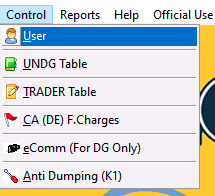
- Administrator Log-on
A log-on window will pop up.- Username: ADMINISTRATOR
- Password: m*******9
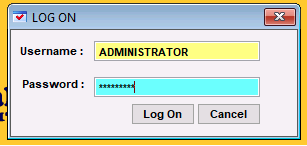
-
Note: Kindly contact MCDS support for the full administrator password.
- View the User List
After successful verification of the administrator username and password, the User List window will appear.The list displays all existing users with details such as:
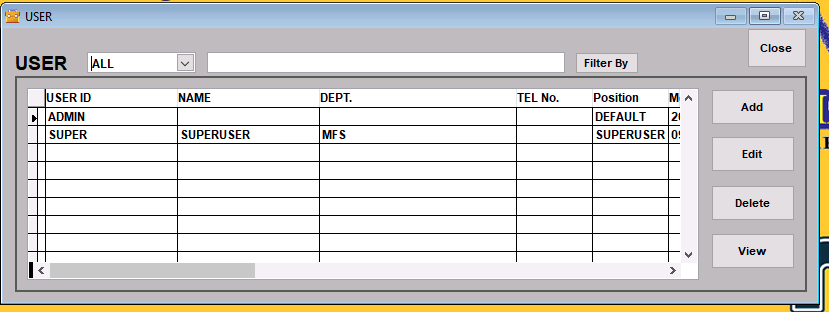
-
- User ID
- Name
- Department
- Telephone Number
- Position
- Other related information
-
To add a new user, click the Add button on the right side of the window. You may also use Edit to modify an existing user or Delete to remove a user.
- Fill in New User Details
When adding a new user, the USER entry form will appear.
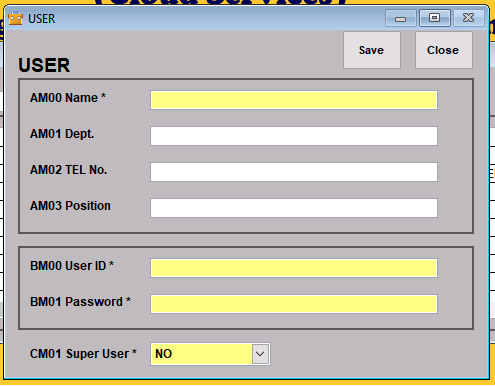
-
Important: Yellow-coloured fields are mandatory.
Key Fields
- AM00 Name – User’s full name (mandatory).
- AM01 Dept. – Department (mandatory).
- AM02 Tel. No. – Telephone number (mandatory).
- AM03 Position – User’s position.
- BM00 User ID – Login ID for the user (mandatory).
- BM01 Password – Login password for the user (mandatory).
- CM01 Super User – Set to “YES” if this account should have super user privileges, otherwise “NO”.
Note: For AM00 Code, you may insert the same name as your username.
After filling in all mandatory yellow fields and any optional details, click Save to create the new user, or Close to exit without saving.
Summary
By following the steps above, administrators can manage the MCDS user list, including adding new users, editing existing user information, and assigning appropriate access levels such as super user rights.